
Find Photos With AI Search
Honcho makes it easy to find photos using AI-powered search. There are three ways to find photos in your gallery:
- Face Search: Upload a selfie or photo of someone to find their matching photos using face recognition.
- People List: Browse a list of people found in your gallery and select anyone to see their matching photos.
- Keyword Search: Describe what you're looking for, such as "people dancing" or "person giving a speech", to find matching photos.
Enable or disable AI search features
You can enable or disable Face Search, People List, and Keyword Search individually in your publicly shared online gallery.
To manage these settings, open your album and go to More (⋯) → Settings → Privacy.
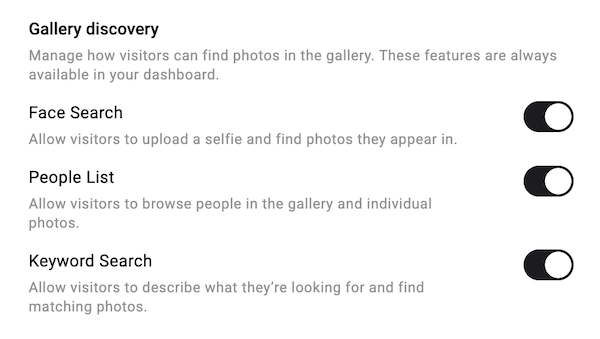
These settings only affect your gallery visitors. All three features will remain available to you in your dashboard and mobile app, even when disabled in the online gallery.
Hide people from the People List
You can hide specific people from the People List in your publicly shared online gallery.
To hide someone, open the People List dialog and click Hide people. Then click on any face to hide that person.
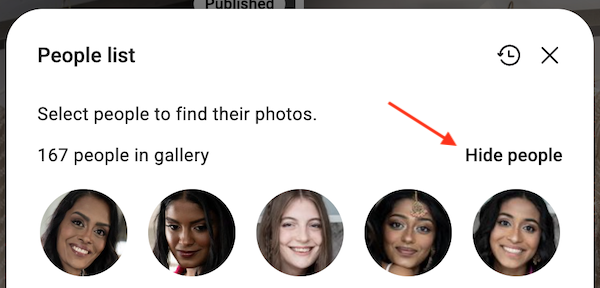
Hidden people won't be visible to your gallery visitors, but will remain accessible to you in your dashboard and mobile app.
Blur photos for privacy
Photo blurring protects privacy by blurring photos in your online gallery. Visitors can use Face Search to find their own photos, which will be shown without blurring. Other photos remain blurred.
To manage these settings, open your album and go to More (⋯) → Settings → Privacy.

Enabling photo blurring automatically enables Face Search and disables People List and Keyword Search in the public gallery, to prevent visitors from browsing or searching for other people's photos.