
Set Up a Custom Domain
A custom domain is a personalized web address (e.g., johndoephotography.com) that helps you establish a professional online presence.
You can connect a custom domain to Honcho on any paid plan by pointing your domain’s DNS records to Honcho. Your domain will continue to be registered and hosted by your domain provider.
Before you begin
- Make sure you have a third-party domain with full access to its DNS settings. If you don’t own a domain, you’ll need to purchase one from a domain provider (e.g., GoDaddy, Namecheap) before continuing.
- Your domain must remain hosted by your domain provider to stay connected to Honcho. You are connecting your domain, not transferring it.
Generate instructions
- In the mobile app, tap on your profile picture and select Account, then Domain. In the web app, tap on your profile picture and select Settings, then Domain.
- Select Custom domain and enter your domain in the field.
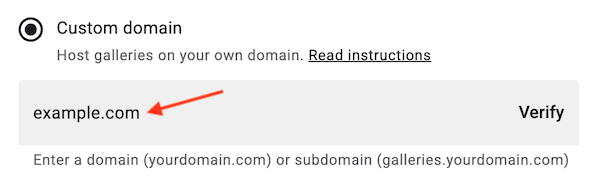
- Tap Read instructions. You’ll see the CNAME record to add for your custom domain—and if needed, an additional A record.

Add the DNS record(s) in your domain provider
- Log in to your domain provider’s dashboard and locate your DNS records. This section is usually called DNS Settings, but it may also appear as DNS Manager, Zone File Settings, Domain Manager, or something similar.
- Add a new CNAME record—and an A record if required—using the properties generated for your custom domain.
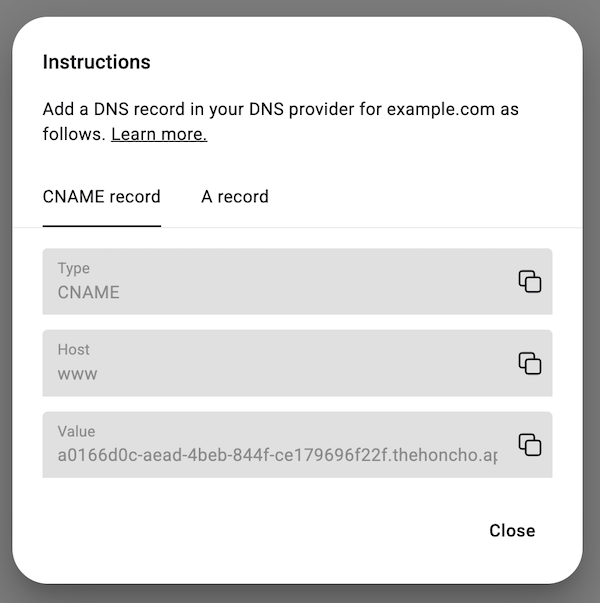
You don't need to change the TTL number in your DNS settings. Use the default value.
You can have multiple CNAME records as long as each uses a unique host (such as www or gallery). If a CNAME already exists with the host required for Honcho, update it to point to Honcho.
If an A record already exists, delete it and create a new one that points to Honcho.
Verify the record
- In Honcho, click Verify in the custom domain field.
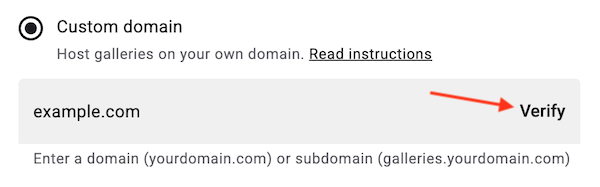
Your custom domain is now connected to Honcho. Please note it may take up to 48 hours for the changes to fully propagate.