
Set Up Your Online Store
To start selling your photos, begin by setting up a price list. This list defines the products you want to offer, such as single photo downloads or multi-photo packages.
Next, assign the price list to a gallery. Once assigned, customers can browse the gallery, select the photos they want to buy, and complete their purchase directly.
Create price list
- Navigate to Store, then Price lists.
- Tap on Create price list.
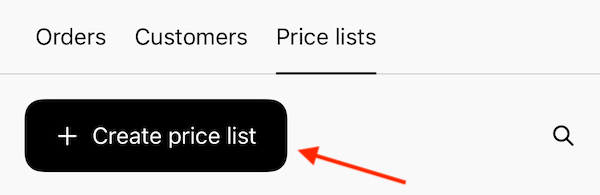
- Enter a name for the price list and tap on Save.
Add products to price list
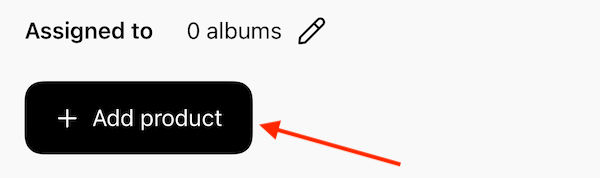
- In the price list, tap on Add product.
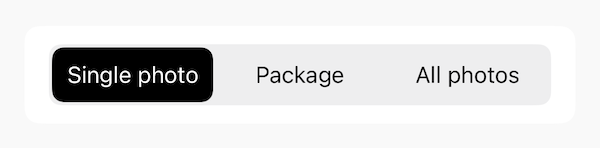
- Choose whether to sell a single photo, a package, or all photos.
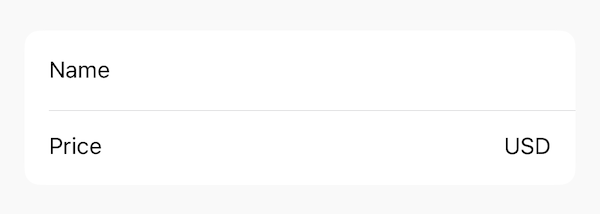
- Enter the product’s name and price.
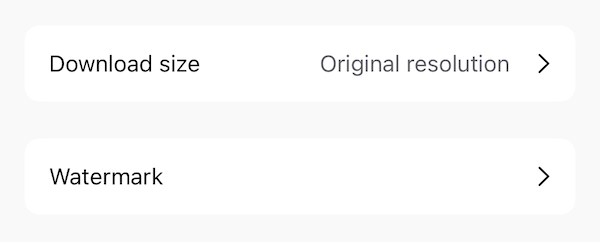
- Select the download size and decide if the download will include a watermark.
- Tap on Save to finish.
You can add multiple products to a single price list, giving customers a range of options.
Assign price list
You can assign a price list to a gallery using two different methods.
Method 1:
- Open the price list and tap on the Edit icon next to Assigned to.
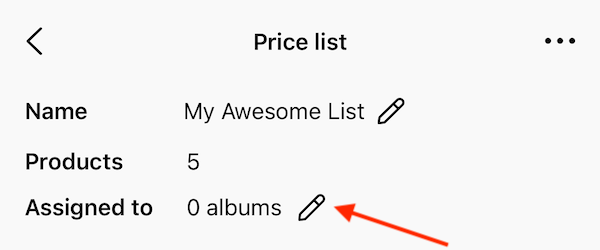
- Choose the galleries to assign the price list to.
Method 2:
- In the album page, tap on the More icon and select Settings.

- Tap on Store.
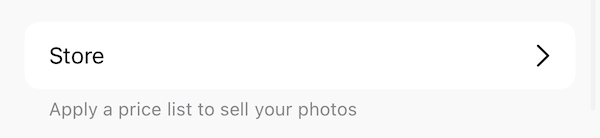
- Under Store, select the price list to assign to the gallery.
Once the price list is assigned, customers can purchase products directly from the gallery.
Disable free downloads
If you don’t want customers to download photos for free, you can remove the download button from the gallery. This ensures photos must be purchased before they can be downloaded.
- In the album page, tap on the More icon and select Settings.
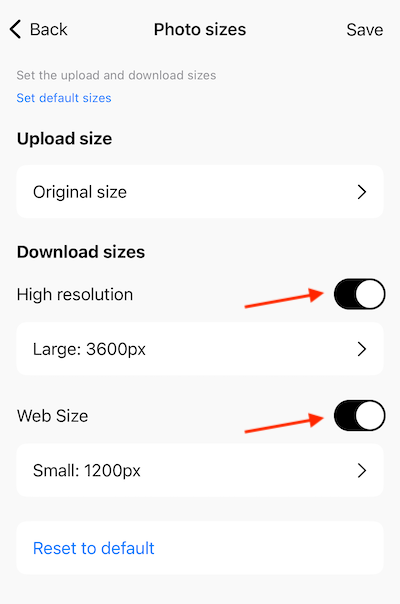
- Tap on Photo sizes.

- Turn off both High resolution and Web size downloads to remove the download button from the gallery.
Commission and transaction fee
Honcho offers low commission rates based on your subscription plan.
- Free plan: 15%
- Indie: 10%
- Pro: 5%
- Studio: 3%
In addition, Stripe applies a transaction fee for each order. This fee varies by region and payment method, but typically falls around 3% + $0.30 per transaction.